
3.9Command-line Interface
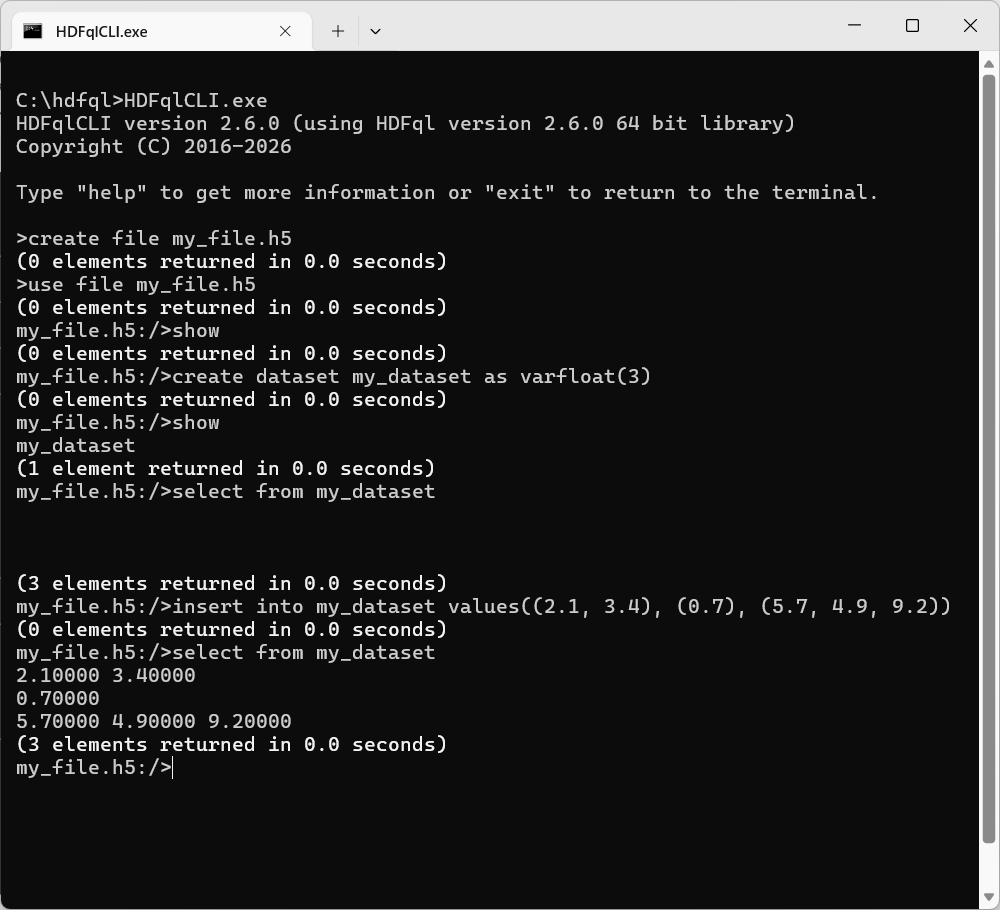
A command-line interface named “HDFqlCLI” is available and can be used for manipulating HDF5 files from a terminal. It is stored in the directory “bin”. To launch the command-line interface, open a terminal (“cmd” on Windows, “xterm” on Linux, or “Terminal” on macOS), go to the directory “bin”, and execute the following:
- On Windows:
HDFqlCLI.exe - On Linux and macOS:
./HDFqlCLI
The list of parameters accepted by the command-line interface can be viewed by launching it with the parameter “--help”. At the time of writing, this list includes the following parameters:
- --help (show the list of parameters accepted by HDFqlCLI and exit)
- --version (show the version of HDFqlCLI and exit)
- --debug (show debug information when executing HDFql operations)
- --no-file (do not show HDF5 file currently in use when in interactive mode)
- --no-group (do not show HDF5 group currently in use when in interactive mode)
- --no-status (do not show status after executing HDFql operations)
- --no-format (do not show help or status in a formatted way (e.g. bold))
- --execute=X (execute HDFql operation(s) “X" and exit)
- --save-file=X (save executed HDFql operation(s) to file “X”)
In case the command-line interface does not launch, it is most likely that the HDFql shared library was not found (which is needed to launch the interface). Depending on the platform, the solution is:
- On Windows, to either:
- Add the directory where the file “HDFql_dll.dll” is located to the environment variable “PATH” by executing the following command in a terminal:
set PATH=<hdfql_lib_directory>;%PATH% - Execute the batch file named “launch.bat”, which properly sets up the environment variable “PATH” and launches the command-line interface in a terminal.
- Add the directory where the file “HDFql_dll.dll” is located to the environment variable “PATH” by executing the following command in a terminal:
- On Linux, to either:
- Add the directory where the file “libHDFql.so” is located to the environment variable “LD_LIBRARY_PATH” by executing the following command in a terminal:
export LD_LIBRARY_PATH=<hdfql_lib_directory>:$LD_LIBRARY_PATH - Execute the bash script file named “launch.sh”, which properly sets up the environment variable “LD_LIBRARY_PATH” and launches the command-line interface in a terminal.
- Add the directory where the file “libHDFql.so” is located to the environment variable “LD_LIBRARY_PATH” by executing the following command in a terminal:
- On macOS, to either:
- Add the directory where the file “libHDFql.dylib” is located to the environment variable “DYLD_LIBRARY_PATH”12 by executing the following command in a terminal:
export DYLD_LIBRARY_PATH=<hdfql_lib_directory>:$DYLD_LIBRARY_PATH - Execute the bash script file named “launch.sh”, which properly sets up the environment variable “DYLD_LIBRARY_PATH” and launches the command-line interface in a terminal.
- Add the directory where the file “libHDFql.dylib” is located to the environment variable “DYLD_LIBRARY_PATH”12 by executing the following command in a terminal:
Figure 3.1 – Illustration of the command-line interface “HDFqlCLI” (in interactive mode)
Notes
- Starting with version 10.11 (i.e. El Capitan), Apple introduced a security feature named System Integrity Protection (SIP) that may prevent setting the environment variable “DYLD_LIBRARY_PATH” and, ultimately, launching the program. To overcome this, SIP should be disabled (please refer to https://developer.apple.com/library/archive/documentation/Security/Conceptual/System_Integrity_Protection_Guide/ConfiguringSystemIntegrityProtection/ConfiguringSystemIntegrityProtection.html for additional information). ↩